Python Editor
An in-browser IDE over Data\clients\ — the folder that holds
every strategy client script — with a working-copy-then-deploy workflow so editing a client
never touches what's actually running until you say so.
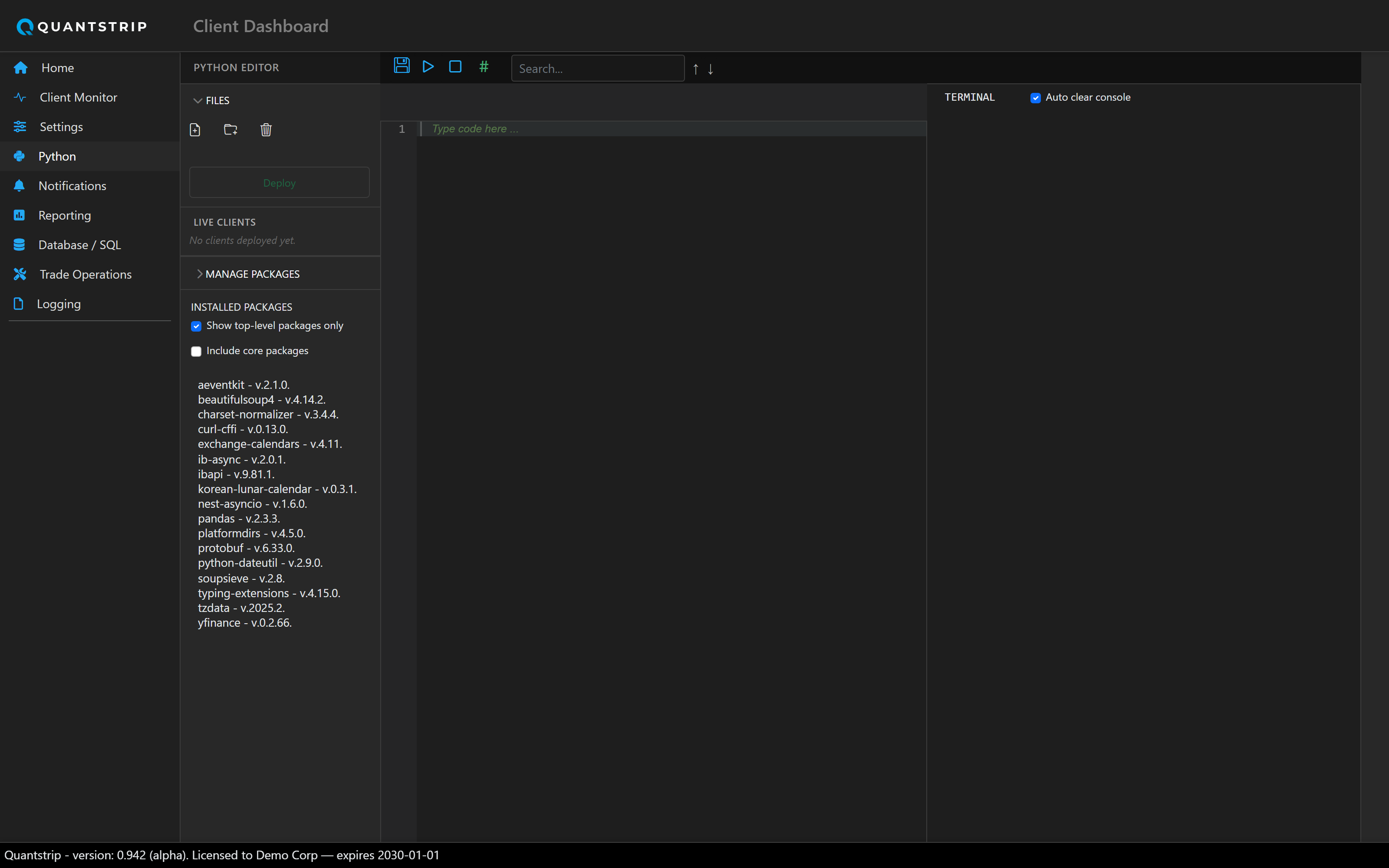
docs/assets/screenshots/ and it will appear here automatically.
Layout
A file tree on the left rooted at your clients folder, a tabbed code editor in the middle, and a "Live Clients" panel listing whatever's currently running or failed according to the service — the same underlying state the Client Monitor page visualizes.
Working copy → Deploy
Opening a client that's currently live doesn't open the live file. It opens (or creates) a
working copy at Data\clients\working\<name>.py. Edits to the working copy
do not affect the running client.
When you click Deploy:
- The working copy is checked for valid Python syntax (
ast.parse) before anything else happens. - The previous live version is backed up to
Data\clients\_deploy_history\<timestamp>\. - The running client is stopped.
- The new source replaces the live file.
- The client is restarted.
Each deploy creates a timestamped backup, enabling rollback to a previous version.
Run (in-editor simulation)
The Run button does not deploy. It loads the editor's current code as a fresh module and
runs its Client class on a daemon thread.
Packages
A package-manager panel lets you pip install/uninstall against the app's own embedded Python interpreter, so a client script's dependencies can be managed without leaving the browser.